
How to make a training video starts with a problem most teams discover too late: employees stop watching. A strong one teaches a single outcome, covers one skill, runs briefly, includes captions, and ends with a quick check for understanding.
Why Employees Skip Training Videos

Picture an operations lead at a distributed logistics company. A forklift safety clip plays in the background while half the team scrolls through their phones.
The production was fine. Completion was the real failure.
Where Viewers Actually Drop Off
Recorded lessons now sit at the center of many training programs. Panopto’s 2024 workforce training report tracks how heavily organizations depend on video for learning, and you can read the full workforce training findings yourself.
Learners tend to drop off for predictable reasons. Long intros delay the actual task, vague goals give no observable action, and content ignores Monday morning’s job. Runtimes also stretch too long to finish between shifts.
Each of these has a practical fix, and it starts before you hit record.
Build a System, Not a One-Off
Many teams treat every lesson as a standalone project, so every correction means a full reshoot. A repeatable system changes that math. Shared script templates and a consistent structure let you update one section instead of starting from scratch.
Design around one outcome and one moment of use. For example, a clip that answers “what do I do when the pallet jack alarm sounds?” beats one that explains the entire material handling policy.
Define One Learning Outcome for Every Training Video
Most teams open a script before deciding what the viewer should do afterward. Before writing a single line, finish this sentence: “By the end of this lesson, the learner can…” Then end it with something you could watch someone perform.
A Claims Team That Split One Long Course
An insurance claims team once had a 45-minute policy course that nobody finished. They split it into three outcomes: filing a first notice of loss in the portal, flagging a total-loss claim, and drafting a payment-delay letter. Each became a short clip, and completion rates looked completely different afterward.
Why Vague Goals Fall Short
Vague goals fail because nobody can check them. “Understand our returns policy” sounds reasonable, but no supervisor can watch someone understand anything. “Process a return in the point-of-sale system without a supervisor” can be tested at the register on Monday.
When a Stakeholder Wants Everything in One Video
Stakeholders often ask for three skills in one recording. Ask which skill the learner needs first. The rest can wait, because the first one is usually the only thing anyone needs this month.
Vague Objectives Compared With Measurable Learning Outcomes
| Vague Objective | Measurable Learning Outcome | Why the Change Matters |
|---|---|---|
| Understand the returns policy | Process a return in the POS system without a supervisor | Shows the exact screens to film |
| Know how claims work | Tag a claim as high-risk in the portal within two minutes | Sets a clear length and a test |
The second column tells you which screens to capture and how long the clip should run. The first column gives you nothing to film or test.
Which skill in your library is hiding three outcomes?
Keep Training Videos Short and Focused on One Skill

Length is the argument training teams have most often, and the evidence is fairly clear on it.
A 2014 study analyzed 6.9 million video-viewing sessions across four edX courses. Shorter clips held attention better, and engagement dropped as runtime grew. Read the full learner engagement research if you want the details.
Why One Skill Per Training Video Works
A focused clip fits into a gap in someone’s day. A sprawling 90-minute recording asks them to block out an afternoon they don’t have.
I once helped split a 90-minute retail onboarding recording into six clips, one for the cash drawer, one for the returns desk, and so on. Each clip opened with the task, showed it once, and ended with a clear next step. Usage changed immediately.
Modular lessons also make updates cheaper. When the returns policy changed, the owner re-recorded one screen instead of rebuilding a course over several weeks. For more on runtime, see our guide on ideal online video length.
Script Training Videos for Learning
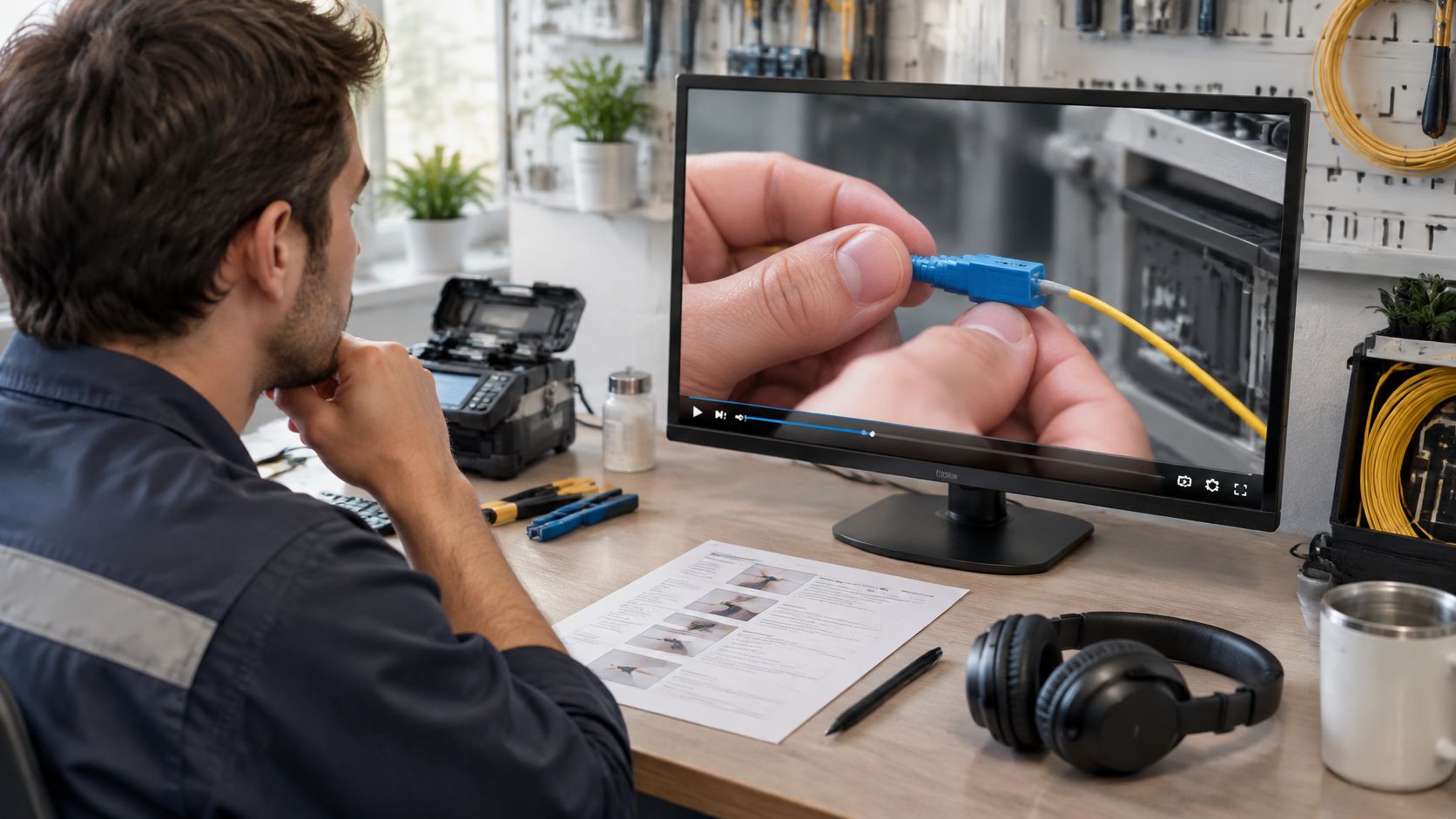
Good training scripts follow a simple rhythm: explain, show, and check. Skip one part, and viewers often drift off within a minute or two.
Explain the Skill in Plain Language
Start with two or three sentences. Name the task, explain why it matters, and say who it affects. On a warehouse floor, that might sound like this: “Before you service a conveyor, lock out its power and attach your personal tag. Unexpected startup can injure a worker in seconds.”
Short sentences hold up better through headsets, translation tools, and noisy floors.
Show the Real Task on Screen
Narration alone rarely teaches a physical or digital task. Pair every line with footage, such as a screen recording, a label pointing at a control, or a close-up of the exact safety check.
A presenter talking to the camera asks people to imagine the work. A close-up lets them watch it happen. Show the task once at normal speed, then again with a voiceover naming each step.
Check Understanding with a Quick Question
End the teaching portion with one scenario question about something the learner will face on Monday. Build the wrong answers around common mistakes, such as skipping the lock or trusting someone else’s tag. A wrong pick exposes the gap without failing anyone.
Applying the Script Across Several Sites
A distributed field-service team in telecom needed one fiber splice check that worked at three depots with different layouts. They kept the same explain, show, and check structure everywhere and swapped only the footage. Because the structure stayed fixed, updates could roll out to every site at once.
Writing Scripts for Global Teams
Use short sentences, skip idioms like “hit the ground running,” and define every acronym on first use, such as lockout/tagout (LOTO) or personal protective equipment (PPE). Before drafting your own, browse video script samples to see how a lesson holds attention.
Read also: how to write an explainer video script.
A script learners finish beats a polished one they abandon.
Add Captions and Accessibility Basics Before Publishing
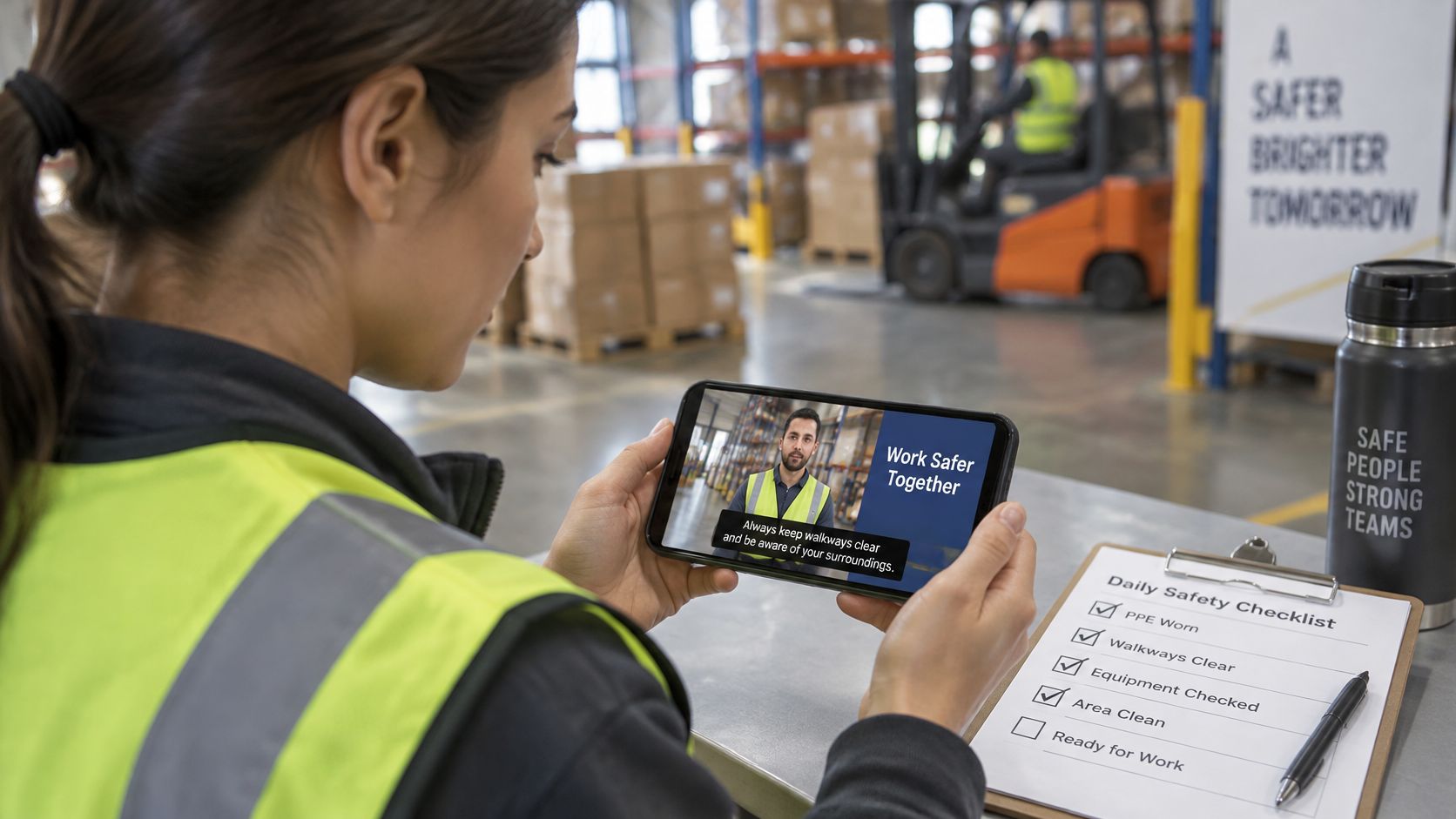
Most teams leave accessibility until the final week, when there’s no time to fix it properly. Captions often decide whether a learner finishes at all.
Match Captions to Each Learner
A technician on a noisy floor can’t hear narration over the machinery, so captions aren’t optional for them. A new hire still building English skills often does better with subtitles and a written checklist open beside the lesson.
Proofread Automated Captions
Automatic captions are a useful starting point, but they stumble over product names, part numbers, and safety terms. One wrong digit in a part number can cause real confusion on the job. Compare every line against your script before publishing. For setup steps, see our guide on how to add subtitles to your videos.
Keep Visuals Readable and Calm
Cut flashing or rapidly pulsing animation, since it can cause discomfort for some viewers. High contrast and a handful of words per slide keep on-screen text readable on a phone. Keep narration clearly above background music, and attach a downloadable transcript to the LMS entry.
A Checklist for Every Training Video
Run through this list before you publish:
- Captions: proofread against the script
- Transcript: downloadable and attached in the LMS
- Contrast: readable at phone size
- Audio: narration louder than music
- Motion: no flashing animation
If a clip only works with the sound on, it isn’t finished yet.
Record, Review, and Publish Where Employees Already Work
Record narration in a quiet room with a basic headset mic, which often beats an expensive mic in an echoey conference room. Then watch the finished lesson on both a laptop and a phone. Small screens reveal text problems that large monitors hide.
Run a Subject-Matter Expert Review
Have the subject-matter expert check every instruction against today’s process. Processes drift, and experts often catch a change made last month. Ask them to watch at normal speed, because skimming a transcript hides pacing problems.
| Accuracy | Clarity | Missing Context |
|---|---|---|
| Does each instruction match today’s process? | Can a new hire follow it unaided? | What did the lesson skip? |
Short forms get honest answers.
Publish Where Learners Already Look
A team can spend weeks on a lesson, then park it in a shared drive where nobody finds it. Put it inside your LMS with a completion tag, or pin it to the intranet onboarding hub. Picture a new hire opening that hub on day one, with the forklift safety lesson sitting beside the shift schedule.
In practice, the workflow starts with a data source, such as an LMS roster or a new-hire start date. That trigger launches a saved template, which fills in the team name, site, and current policy version so nobody watches an outdated lesson. Distribution then runs hands-off, placing the finished lesson in the LMS and intranet without anyone remembering to send it.
Read also: How Randstad Group uses video for better internal communication.
Measure and Update Your Training Video Library
Publishing is the start of the useful work. Three numbers show whether a lesson is working: completion rate, quiz results, and support tickets that keep circling the same topic.
Reading Your Metrics Together
Read these numbers as a set. Low completion with strong quiz scores usually points to a slow opening or a runtime that’s too long. High completion with weak quiz scores often means the demonstration skipped a step, or the check tested something you never taught.
Support tickets add a third signal. One refund lesson had strong completion, yet the same question arrived every week because one step never appeared on screen. When a question keeps returning, the lesson has a gap.
Read also: what metrics say about your video, part I.
Training Video Metrics and What Each One Tells You
| Metric | What It Reveals | Action When It Is Weak |
|---|---|---|
| Completion rate | Whether learners make it to the end | Shorten the intro and trim the runtime |
| Quiz results | Whether the skill actually transferred | Rework the demonstration or the check question |
| Repeat support tickets | Where the lesson left gaps | Record a short clip covering that gap |
Start with whichever number looks weakest, and fix that before touching anything else.
Updating Without Rebuilding from Scratch
Policies change, and screens get redesigned. Rebuilding every lesson each quarter drains budgets, so teams often leave outdated lessons online instead, which is worse. Save a template that holds the intro, caption style, and closing check. When the returns policy changes, swap only the changed screens and republish.
Platforms like Wideo make this practical for teams that refresh training often. You can explore the video template library or explore Wideo’s platform to see how that structure carries over from one lesson to the next.
Completion decides whether a training video was worth making.