Two SaaS teams of similar size published demos for the same product. The first uploaded a six-minute screen recording named after its feature list, and viewers were gone within forty seconds. Learning how to make a product demo video starts with closing that gap between what your team wants to show and what the viewer came to see.
Why Most Product Demo Videos Lose Viewers by Minute One
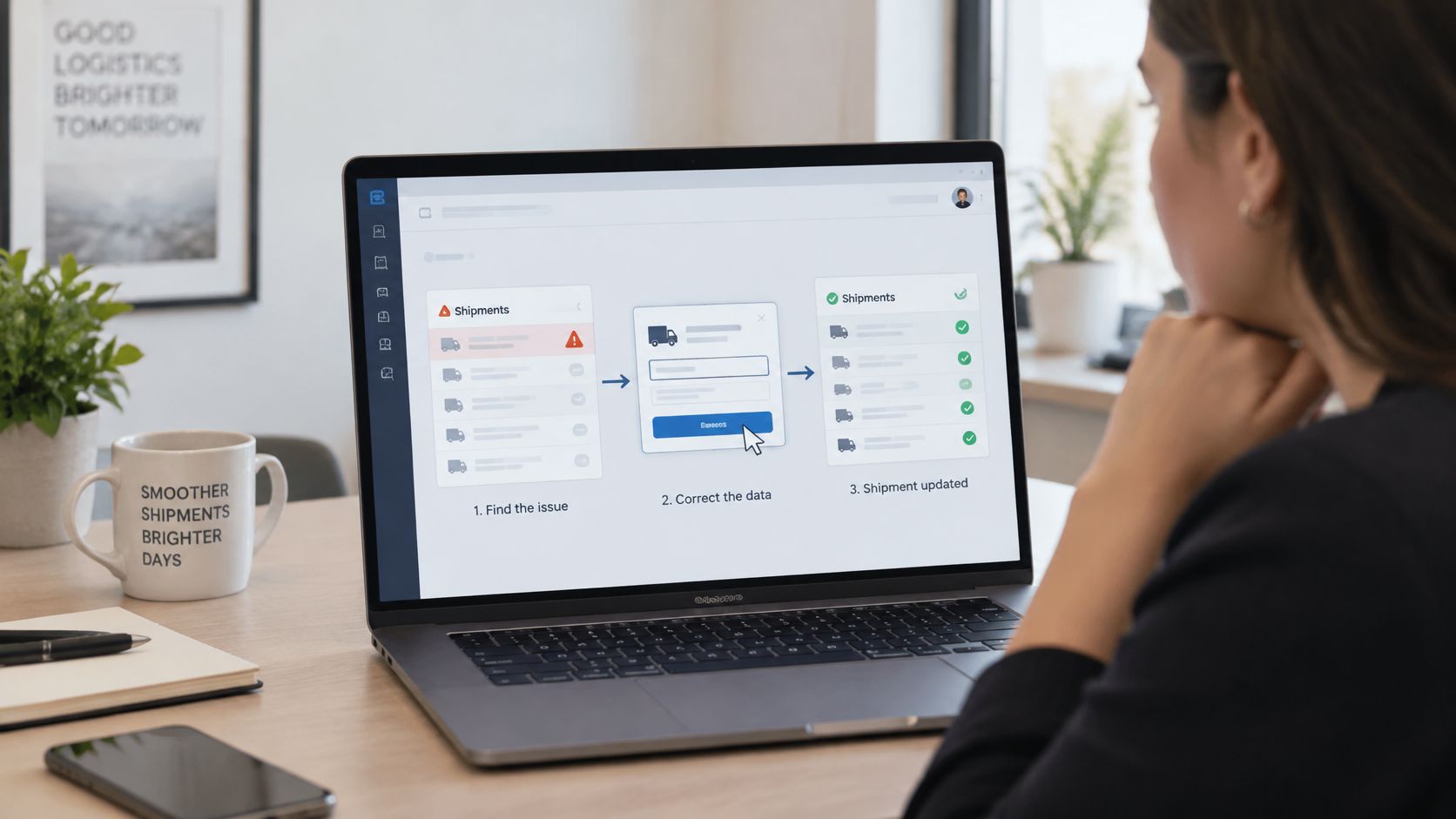
The second team opened on a dispatcher stuck reconciling shipment data, fixed the problem in under a minute, and kept people watching through the call to action. Budget wasn’t the difference. A feature-first demo leaves viewers to translate each menu item into their own problem, and most won’t bother.
Think of a menu tour as a map with no destination marked. Viewers want to reach something specific, and a map alone doesn’t tell them where they’re headed. Start with the destination.
Why Feature Tours Lose the Viewer
A demo is a focused business asset with one job, not a museum tour. Many teams are moving away from the old model, where one specialist spent weeks cutting footage by hand. The newer approach is a repeatable process built from reusable scenes that anyone on the team can run. It’s closer to moving from a handcrafted film to a production line.
A demo earns the next minute by showing a result the viewer already wants.
Read also: how long your clip should run before viewers drift.
Choosing the Right Product Demo Type for the Job
Before you write a line of script, decide what the viewer needs to get done. The right format depends on that moment, not on how much you want to show off. Most business needs fall into four formats: a short overview for awareness, a feature spotlight for existing users, a full walkthrough for trial users, and a personalized demo for a single prospect.
Matching the Format to the Moment
Each format has its own length and audience, and mixing them up is a common reason demos feel bloated. A ten-minute walkthrough on a landing page asks strangers to commit before they have any reason to. Sales teams often solve this by building a prospect version from CRM notes, which skips the generic tour and focuses on the two workflows that matter to that account. The payoff is practical:
- Fewer abandoned views
- Shorter sales cycles
- Onboarding videos that new users actually finish
Product Demo Types and Where Each One Works
Product videos rank among the most common formats companies plan to create. By 2024, 44% of marketers said they were producing them, compared with 38% making educational content and 32% producing webinars or live events. Discover more insights about video marketing statistics
Use the table below as a quick filter before you open your editor.
| Demo Type | Best Viewer | Typical Length | Core Job |
|---|---|---|---|
| Short overview | Cold visitor on a landing page | Under 60 seconds | Earn interest and a click |
| Feature spotlight | Existing user who needs one capability | 1–2 minutes | Show one capability working |
| Full walkthrough | New trial user | 5–10 minutes, chaptered | Get the first win |
| Personalized demo | Named prospect in an active deal | 2–4 minutes | Prove fit for one account |
If you can’t name the viewer in the first column, you aren’t ready to script yet.
You might be interested in: app demo templates for a quick start.
Pick the format first, then write the script around the one moment it has to win.
Scripting a Product Demo Video Around Outcomes
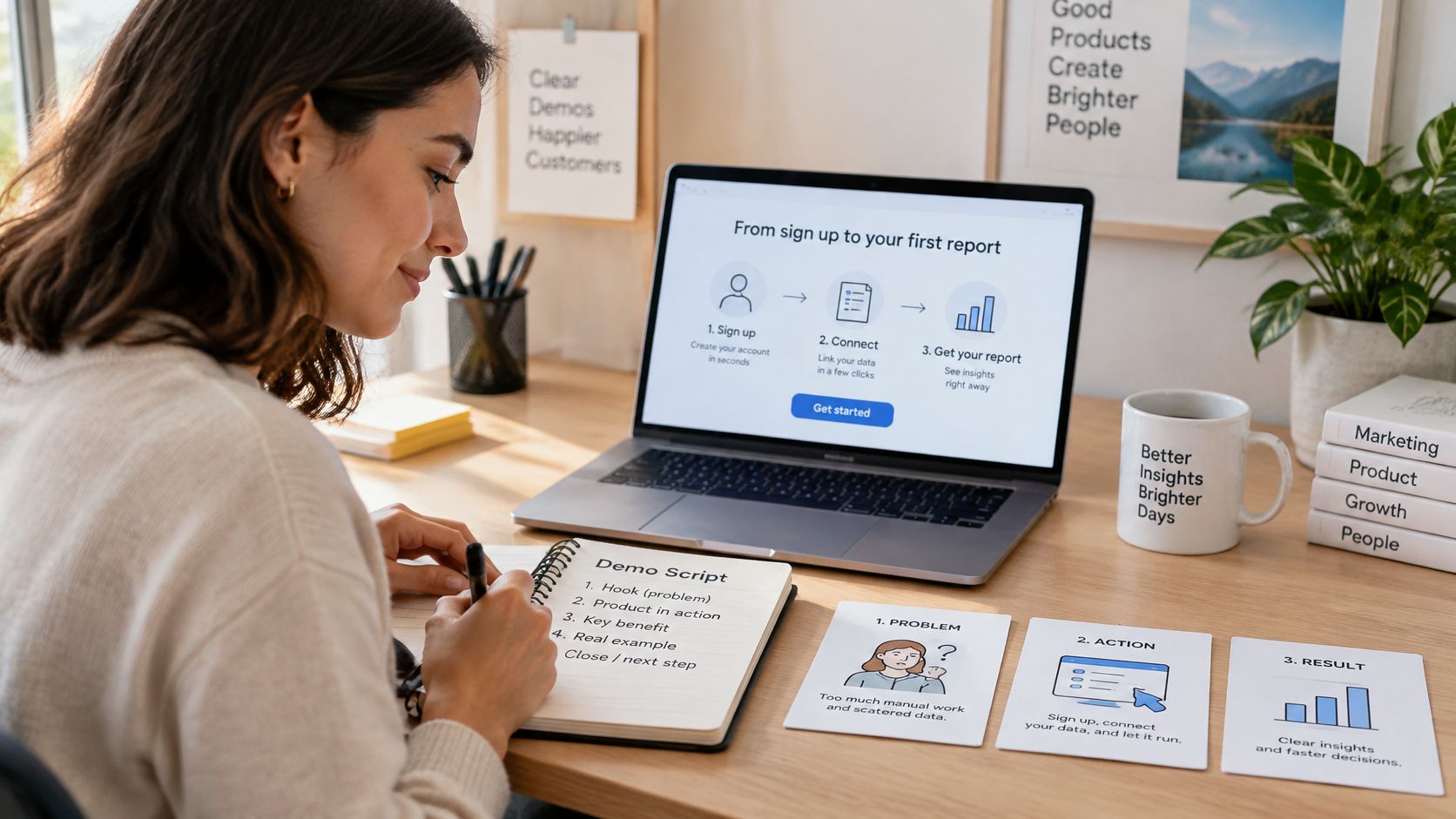
Most demos go sideways before anyone hits record. The team opens a blank doc, lists every feature, and builds the script from that list. A better script is simpler: name the problem, show one action, and state the result.
Open With the Viewer’s Problem
The first ten seconds decide whether anyone stays. Pick a situation your viewer already knows well, like a finance manager chasing expense receipts at month-end. Use their language, not yours. “Still chasing receipts before month-end?” hooks someone, while “Our platform simplifies expense management” sends them looking for the close button.
Show One Action in Context
The middle of the demo should follow the product finishing one task. Touring every menu loses people fast. Take a SaaS expense tool: instead of walking through each screen, frame the demo as “from signup to first result.” The narrator follows what a brand-new user actually does, which is create an account, connect one data source, and open the first report.
Viewers need to understand a product before they’ll consider buying it. 96% of marketers say videos help people understand a product or service, and 89% say those videos influenced a purchase decision. Discover more insights about explainer video research on HubSpot
Read also: How to Write an Explainer Video Script
Name the Result in Plain Language
The proof comes after the action. The narrator should state the result the way a colleague would: “Your first report is ready in four minutes,” or “Eleven receipts matched without a single follow-up email.”
Keep any on-screen number visible for at least three seconds. Numbers that flash by feel like a pitch, while numbers that stay put feel like evidence.
Editing is where extra scenes creep in. Logos, settings screens, and “bonus” features feel important while you’re cutting. Ask whether each one gets the new user closer to that first report. If not, save it for another piece.
If a scene doesn’t move the viewer toward the result, cut it.
Recording and Editing a Clean Product Demo
A demo that looks effortless got that way long before recording. Most of the polish comes from preparation, not from clever fixes in the editor. Careful setup is what keeps the final cut feeling intentional.
Start With a Clean Environment
Close extra tabs, hide the bookmarks bar, and sign in to a test account with realistic but non-sensitive data. Nobody wants a personal inbox in the frame. Record at a resolution that still looks sharp on a phone, since plenty of viewers will watch there.
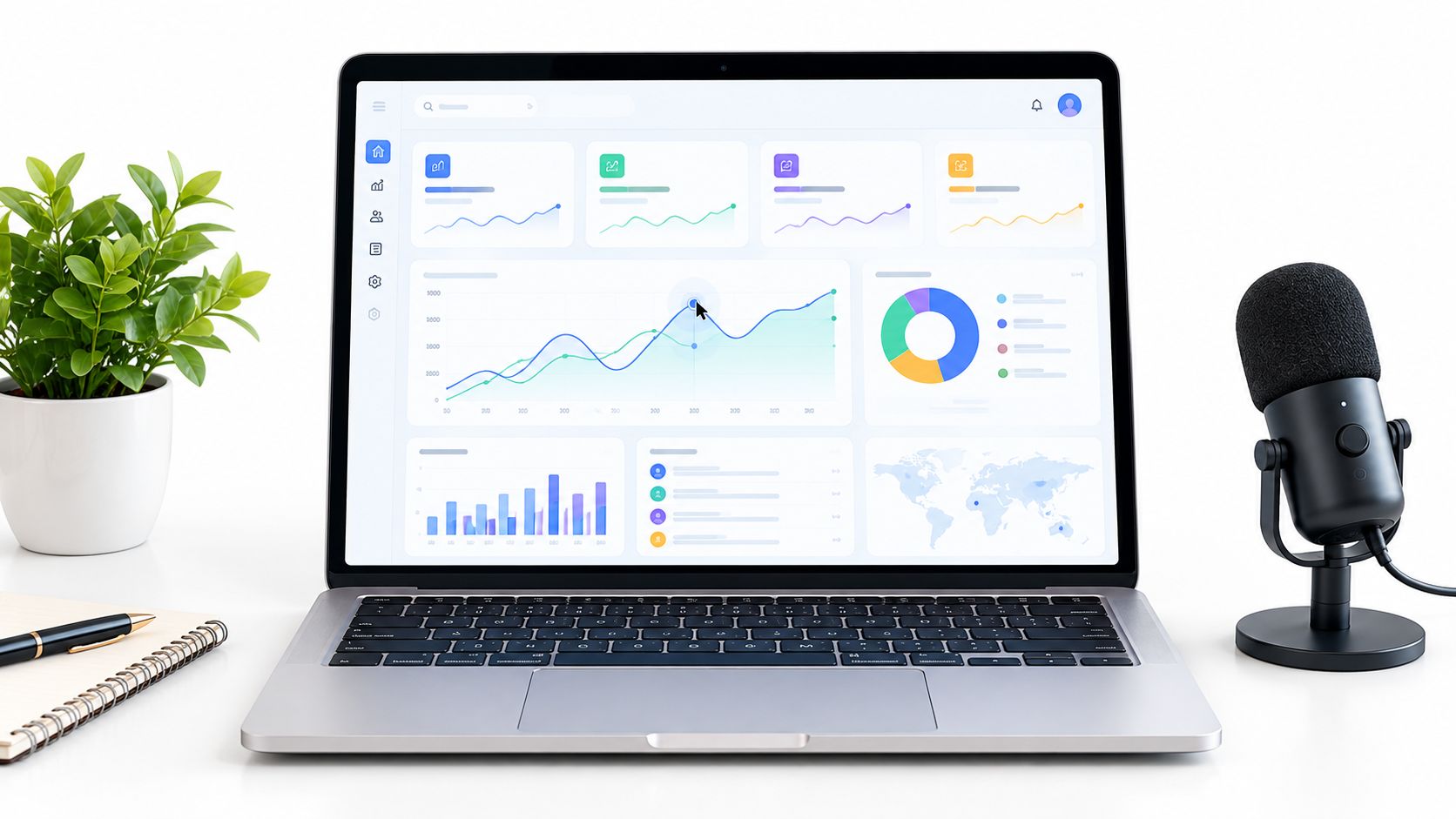
Dense screens like this one reward a slower pace. Viewers need extra seconds to read each chart before your next click lands.
Set a Pace Viewers Can Follow
Trim dead air between clicks, but don’t rush so much that people miss what changed. A good starting point is three to five seconds per on-screen action, with one idea per scene. Slow down whenever numbers appear. Zoom in on the exact area your cursor touches, so viewers never hunt for the change you’re describing.
Editing Transitions Without Clutter
When the view shifts, mark the change with a short highlight or caption. A small cue tells viewers where to look next. Consistency matters too. A team producing twenty demos a quarter can keep a shared checklist, so a new hire’s recording looks like the work of the most experienced marketer. If you’re still choosing a capture setup, our guide to screen recording tools for clean product walkthroughs covers the main options.
The best demos look simple because someone prepared every step carefully long before recording began.
Adding Voice, Captions, and a Clear Next Step
A silent demo only goes so far. Narration and captions let it work on a crowded train, in a noisy office, or buried in an inbox. Write narration in short sentences that follow the screen, and skip feature names, since the interface already shows them.
Recording the Voiceover Cleanly
If your screen recording picks up fan hum or keyboard clicks, don’t try to fix it in the edit. Record the voiceover on its own track. Keep background music low, because the moment someone strains to hear you, they’re gone.
Captions Viewers Actually Read
Plenty of people watch with the sound off, especially in social feeds. Burn captions into the frame, show one line at a time, and highlight the word that matters most. An AI caption generator can save a lot of typing. A good place to start is choose AI subtitles for social videos, but check every line against your script, since auto-generated text often mangles product names.
Read also: adding subtitles to your recording in minutes
Ending With One Clear Next Step
Every demo should tell the viewer exactly what to do next. A self-serve visitor probably wants a free trial, while an enterprise prospect is more likely to want a booked call. Stick to one button, not three, and keep it on screen for three seconds. A menu of choices at the close only makes people hesitate.
One clear action beats three competing buttons.
Keeping Your Product Demo Video Current as the Product Changes
The real cost of a product demo isn’t the shoot. It’s the upkeep. A piece that was accurate at launch can show a retired button or an old pricing page within a few releases, and teams often learn this when a prospect points it out on a call. Treating maintenance as a system from day one prevents that.
Build Scenes Instead of Single Films
Split the demo into a library of scenes, one per workflow. When the interface changes, re-record only the affected scene. A renamed button shouldn’t mean a full re-edit.
Generate Variants from One Library
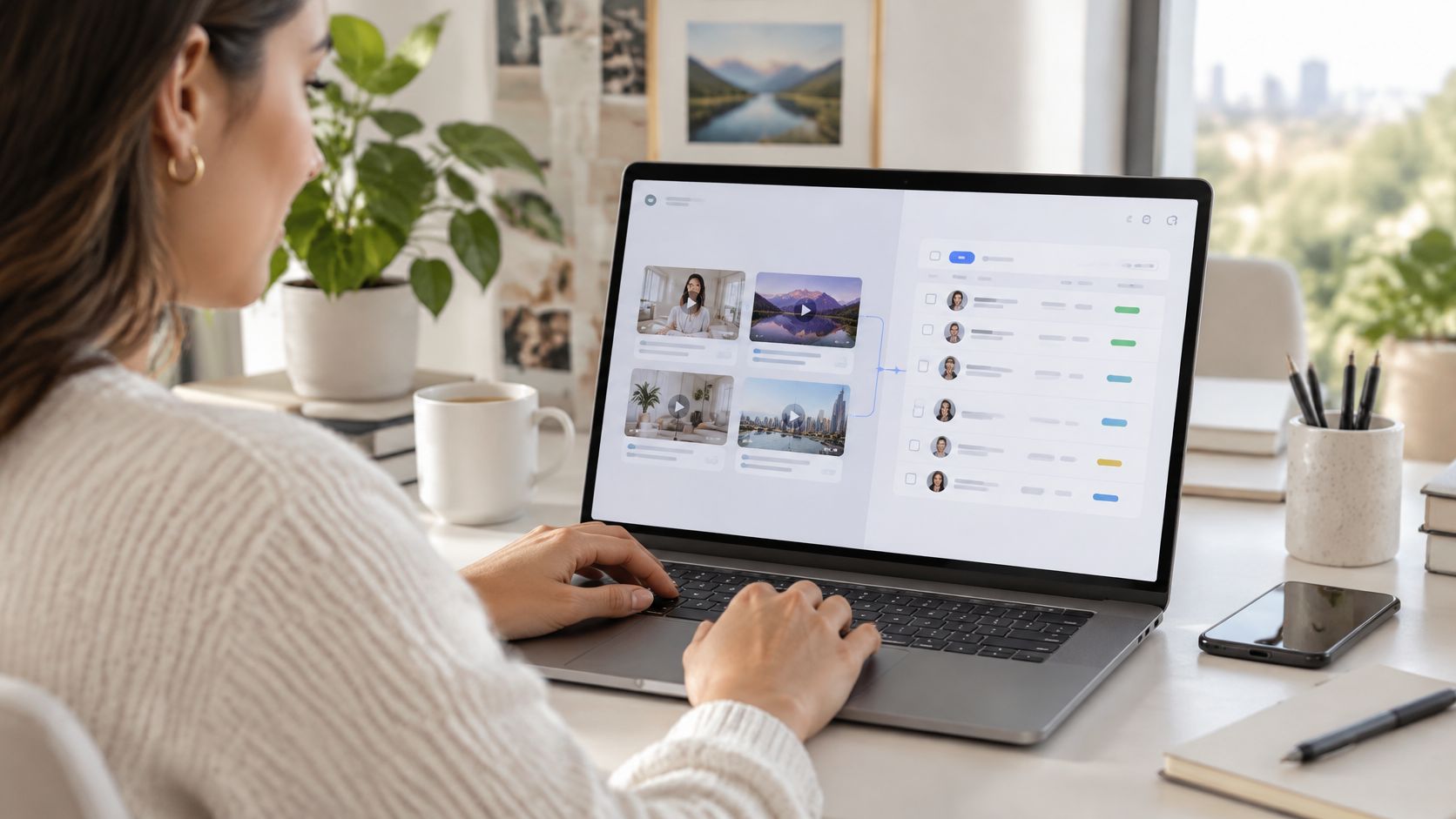
Pull fields from your CRM, like industry, region, plan tier, or account name, and feed them into the same template. A SaaS company with dozens of customer segments can keep every version current without opening each file. Scenes become building blocks, and CRM data becomes the instructions for assembling them.
Doing this by hand gets expensive fast. Teams that need hundreds of onboarding videos from CRM records often move to a platform like Wideo for template-based generation, where a machine-driven render handles each account without manual editing. You can see one setup in this template-based demo workflow.
Putting the Workflow Into Practice
A CRM or product-usage feed passes account details to a template. A trigger, such as a new trial or a release event, starts the render. The finished pieces then land in email sequences, landing pages, and sales follow-ups, so when one screen changes, every touchpoint refreshes in one pass. Which of your touchpoints would go stale first if a release shipped tomorrow?
A demo built from scenes costs far less to keep accurate than one rebuilt from scratch after every release.
Frequently Asked Questions About Product Demo Videos
By the time the script is locked, most of the big questions have come up. These are the ones we hear most often.
How Long Should a Product Demo Video Be?
It depends on where the piece will live. Overviews should stay under 60 seconds for landing pages, feature spotlights work well between one and two minutes, and full walkthroughs only make sense when they support onboarding. Shorter usually wins, because most buyers decide within the first minute.
Do I Need Editing Experience to Make a Product Demo Video?
Not really. A good template and a clear script handle most of the technical side. Teams usually struggle with consistency, so a shared checklist helps everyone meet the same quality bar.
Start small. One polished scene teaches you more than a rushed full draft.
Should I Use My Own Voice or AI-Generated Narration?
It mostly comes down to the deal. For complex enterprise sales, a real human voice tends to build more trust, while a model-generated voice saves serious time for high-volume onboarding or localized versions. Either way, read the script line by line before rendering. A synthetic voice will read a wrong claim as smoothly as a correct one.
How Often Should a Product Demo Video Be Updated?
Review the demo soon after any release that changes a visible workflow. Scene-based libraries make this far less painful, since you only re-record the part that changed.
Shipping a new feature soon? Turn it into a repeatable demo with Wideo, and start with Explore Wideo’s ready-made demo templates.
The demo that keeps winning is the one your team can rebuild in an afternoon, not the one you polished for a week.