
Before we get into the nuts and bolts of how to embed a video, let’s talk about why it’s worth the effort. In a world of overflowing inboxes, plain text and static images just don’t cut it anymore. Video is what grabs your subscriber’s attention and holds it.
Why Video in Email Is a Game Changer for Engagement
It’s easy for your message to get lost in the daily flood of emails. Video slices through that noise. It’s dynamic, engaging, and conveys information far more effectively than text ever could.
The Psychology Behind Video’s Impact
There’s a reason video works so well—it taps directly into human psychology. By combining visuals, sound, and motion, you create a multi-sensory experience that makes your message stick.
Think about it. A SaaS company can share a 30-second customer testimonial that’s packed with genuine emotion, something a simple written quote could never capture. Or an e-commerce brand can use a quick product demo to show off features in action, answering questions before your customer even thinks to ask them.
This approach builds a much stronger, more human connection with your audience. You’re not just telling them something; you’re showing them. For a deeper dive into this, check out these insights on engaging customers with video.
The Hard Numbers on Performance
This isn’t just theory; the data backs it up. The impact of video on email performance is undeniable.
Studies have consistently shown that including a video in your email can skyrocket click-through rates by up to 300%. It doesn’t stop there. Marketers see an average conversion rate boost of 34% and can even accelerate revenue growth by nearly 49% compared to campaigns without video.
Video doesn’t just decorate your email—it drives action. By presenting information in a dynamic format, you significantly lower the barrier for subscribers to engage with your message and move down the conversion funnel.
The numbers don’t lie. Video makes your emails work harder and smarter. If you’re looking to really level up, exploring some advanced strategies for email marketing video can give you an extra edge.
Choosing the Right Video Embedding Method

So, how should you get your video into an email? There’s no single right answer. The best approach really hinges on your campaign goals, who your audience is, and what kind of technical resources you have on hand. Let’s walk through the three tried-and-true methods so you can make the right call for your next send.
Each technique offers a different trade-off between a slick user experience and broad technical compatibility. Getting a handle on these differences is the key to building an email that not only looks sharp but actually works for everyone.
The Static Image with a Play Button
This is the classic, old-faithful method. It’s the most common approach for a reason: it just works, everywhere. You grab a compelling thumbnail from your video, pop a “play” icon on top, and link the entire image to your video’s destination—whether that’s a landing page, YouTube, or Wistia.
While it doesn’t play in the email, it reliably drives traffic to a space you control. This is a huge plus, as you can surround the video with more context, relevant links, or a strong call to action right after it finishes.
The Animated GIF Fallback
Want something a little more dynamic than a static image? An animated GIF is your best friend. It gives subscribers a sneak peek of your video’s action right in their inbox. You simply convert a short, punchy clip from your video into a looping GIF and link it to the full-length version.
This method is a fantastic middle ground. The motion naturally grabs the eye and can give your click-through rates a nice boost. The trick is to keep the GIF’s file size small to avoid any deliverability headaches or slow load times.
Pro Tip: Aim for a 3-5 second clip that showcases the most interesting part of your video. This short, silent preview acts as a powerful teaser, making people curious enough to click and see the whole thing.
The Advanced HTML5 Embed
For the absolute slickest user experience, you can embed a video directly into the email using HTML5. When it works, it’s a thing of beauty. Your subscribers can watch the video without ever leaving their inbox.
But here’s the catch: support for HTML5 video is still pretty spotty. It works great in clients like Apple Mail, but it’s a no-go in major players like Gmail and Outlook. That means you must code a fallback—usually a static image or a GIF—for the email clients that don’t support it. This route requires more technical know-how but can deliver a huge impact for specific campaigns.
To help you decide, let’s break down the pros and cons of each method side-by-side.
Comparing Video Embedding Methods
| Method | Pros | Cons | Best For |
|---|---|---|---|
| Static Image | 100% compatible, simple to create, drives traffic to a landing page. | No in-email playback, less engaging than a GIF. | Campaigns where reliability and landing page traffic are top priorities. |
| Animated GIF | More engaging than a static image, previews video content, high compatibility. | Can have large file sizes, no sound, still requires a click-through. | Grabbing attention and boosting clicks with a dynamic preview. |
| HTML5 Video | Plays directly in the email, offers the best user experience. | Limited email client support, requires a fallback and technical skills. | High-impact campaigns targeting audiences known to use compatible clients like Apple Mail. |
Ultimately, your choice should line up with your campaign’s specific goals. To dive deeper, you can learn more about the different types of video to use in email marketing and match the content to the method. By weighing these options carefully, you can pick the technique that delivers the best possible experience for your audience.
Embedding Video Directly with HTML5 Code
For the ultimate in-email experience, you can go straight to the source and embed your video using HTML5. This is the most direct route, but it comes with a pretty big catch: email client support is spotty.
While this method creates a seamless, autoplaying video right in the inbox, it really only works consistently for subscribers on Apple Mail and a few versions of Outlook. For everyone else, you’ll need a solid backup plan.

This approach involves dropping a <video> tag right into your email’s HTML. The magic lies in a few key attributes that control how your video behaves. You can set it to autoplay the moment the email is opened, make it loop endlessly, and ensure it starts muted so you don’t blast unexpected audio at your recipient.
Structuring the HTML5 Video Tag
Getting the code right here is absolutely critical, mainly because you have to plan for failure. Your code needs to gracefully handle all the email clients that don’t support video. The solution? A fallback image.
This image will show up in clients like Gmail and most webmail services, making sure your email still looks clean and has a clear call to action instead of a broken mess.
Here’s what the basic code structure looks like:
The trick is nesting the <img> tag inside the <video> tag. Supported clients will see the video and play it, completely ignoring the image. Unsupported clients will do the opposite—they’ll ignore the video tag they don’t understand and render the fallback image instead.
By wrapping the whole thing in a link, you make both the video and the fallback image clickable, sending users to a landing page where they can watch the full video.
Think of the fallback image as more than just a backup; it’s a crucial part of the user experience. It guarantees that every single subscriber sees something polished and professional, no matter what email client they’re using.
As with anything in email development, rigorous testing is non-negotiable. Always send tests to yourself on different clients (Gmail, Outlook, Apple Mail, etc.) to see exactly how your video renders. This simple step can save you from sending a broken-looking campaign to your entire list, protecting both your brand and your engagement rates.
Best Practices for High-Impact Video Emails
Getting the video embedded correctly is just the starting line. To really make a difference, you need a strategy that grabs attention the second your email hits the inbox. This is less about the code and more about the human experience.
It’s the little things that count. A simple tweak, like adding the word “video” to your subject line, can boost open rates by as much as 19%. People want to know what they’re getting into, so tell them upfront.
Design for the Click
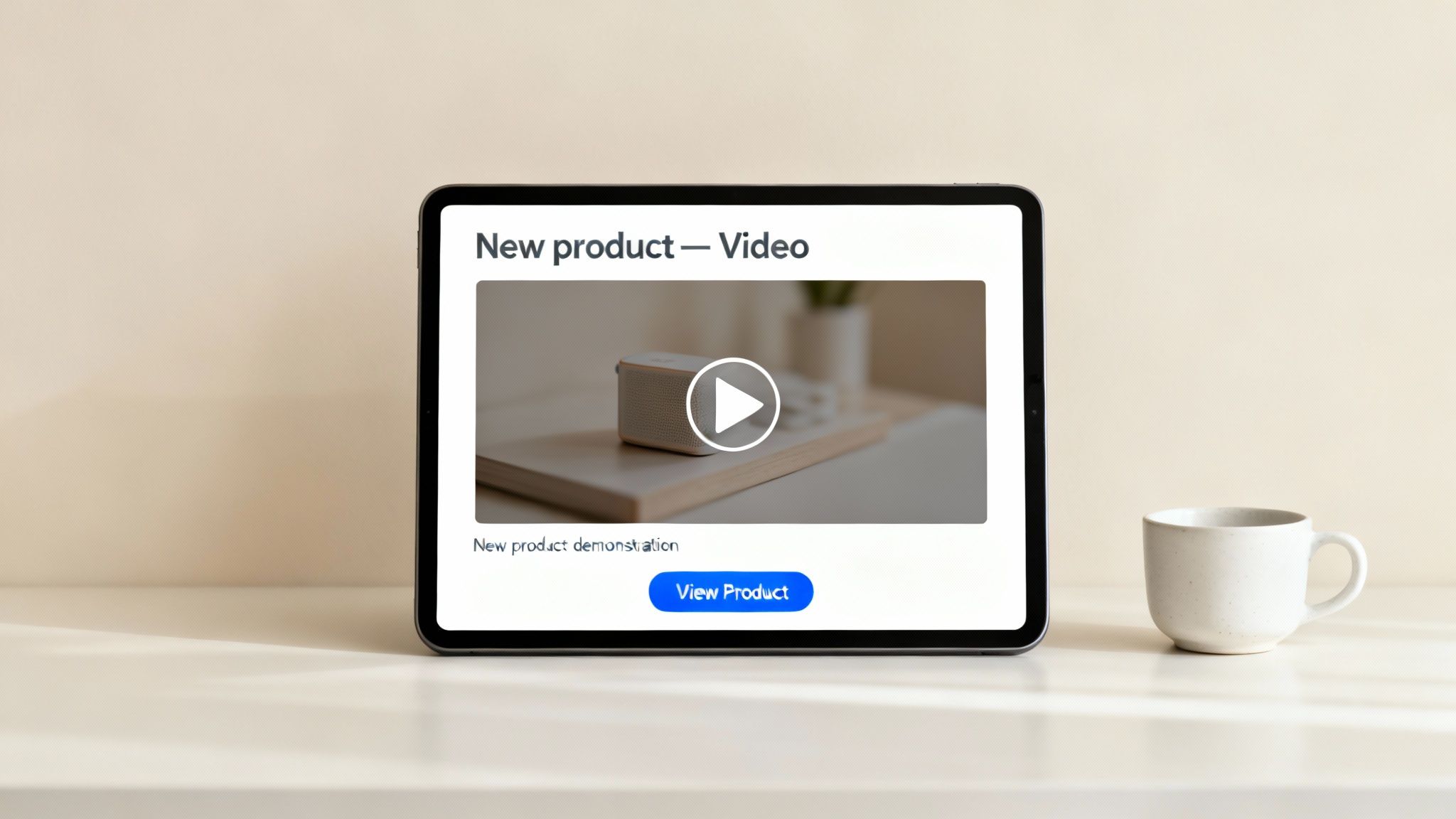
Your video thumbnail is your single most important visual. It’s the front door to your content, and it needs to be inviting. Don’t just let the email client pick a random, blurry frame from your video. That’s a missed opportunity.
Instead, take the time to create a custom thumbnail that’s:
- High-Quality: The image needs to be sharp, clear, and perfectly aligned with your brand.
- Compelling: Show an expressive face or an intriguing shot of your product. Spark some curiosity!
- Obvious: Overlay a clean, universally recognized play button icon. There should be zero doubt in the user’s mind about what happens when they click.
A great thumbnail is a visual call to action. It sets expectations, promises valuable content, and makes the decision to click a total no-brainer. For a deep dive, check out this digital marketer’s guide to video in email.
Optimize for Performance and Accessibility
Once someone clicks, the experience has to be seamless. That starts with respecting their time and whatever device they’re using.
Keep your video short and sweet. Aim for under 60 seconds to hold their attention. And please, mute the audio by default. Unexpected sound is one of the fastest ways to get someone to close the tab.
Technical performance is just as critical. A massive video file won’t just load slowly; it might get your email flagged as spam. Compress your video to keep the file size down without turning it into a pixelated mess. While about 89% of businesses use video in their marketing, these technical details are where many still stumble due to inconsistent email client support.
Finally, think about accessibility. Add captions for viewers who are hearing-impaired or just watching with the sound off (which is most people on mobile). And always write descriptive alt text for your fallback images. To figure out if all this effort is paying off, it’s essential to know how to calculate the marketing ROI for your campaigns.
Figuring Out Common Video Email Problems
Even when you’ve followed all the best practices, you can still hit a few snags. Getting to the bottom of why things go wrong is the first step to making sure your audience has a great experience with your video email.
One of the questions I hear most is, “Why won’t my video play in Outlook?” The simple truth is that major email clients like Outlook and Gmail just don’t play nicely with embedded HTML5 video. This is exactly why your fallback image isn’t just a suggestion—it’s a necessity. It ensures those users see a clean, clickable image instead of a broken player.
Solving Deliverability and Quality Issues
Are your emails mysteriously landing in the spam folder? The video file size is almost always the culprit. Spam filters are notorious for flagging emails with large attachments. You absolutely have to compress your video to keep it under 10 MB, and honestly, the smaller, the better.
On the other hand, a pixelated, poor-quality video can be just as frustrating. This usually happens when you’ve gone a little too far with compression. It’s a balancing act between keeping the file size down and maintaining crisp, clear visuals.
The whole point is to create a seamless experience for the user. A blurry video or an email that never even arrives is far worse than sending no video at all. You’ll need to test out a few different compression settings to find that sweet spot.
Finally, if you’re seeing low click-through rates, it’s time to take a hard look at your thumbnail and call-to-action. A boring thumbnail with a weak CTA just isn’t going to get anyone excited to click. Make sure that play button is impossible to miss and that the image you choose sparks a little curiosity.
Got Questions About Video in Email?
Even with the best techniques, a few questions always seem to pop up when you’re getting started. Let’s run through some of the most common ones we hear from marketers.
Can You Embed a Playable YouTube Video in an Email?
The short answer is no, you can’t embed a fully playable YouTube video that streams directly inside the email itself. Most email clients, especially giants like Gmail and Outlook, block the scripts needed for this to work. It’s a security thing.
The industry-standard workaround is exactly what we’ve been talking about: use a great-looking thumbnail of your video, slap a play button icon on it, and link that whole image to your YouTube video. It’s hands-down the safest and most reliable way to get eyes on your content.
What Is the Ideal Video Format and File Size?
For the best compatibility, MP4 is the gold standard video format. It’s supported by the handful of email clients that actually allow HTML5 video, and it plays back on pretty much any browser or device.
When it comes to file size, smaller is always, always better. Try to keep your video file under 10 MB. This helps you avoid getting flagged by spam filters or making your subscribers wait for slow load times. Big files are a major red flag for deliverability.
Your goal is a seamless user experience. A video that’s too large might stop your email from ever reaching the inbox, which defeats the entire purpose.
Do I Need a Special Tool to Embed Videos?
Not really. Many modern Email Service Providers (ESPs) have built-in features that make adding video a breeze. You’ll often find a “video block” in their editor where you just paste a URL. The platform then works its magic, automatically grabbing a thumbnail and linking it up for you. This completely sidesteps any need for manual coding or image editing.
Ready to create some stunning videos for your next email campaign without the technical headache? Wideo’s intuitive platform makes it easy to produce professional animated videos in minutes. Start creating for free at Wideo.
Related posts:
 Tutorial: Adding Animated GIFs to Your Wideos
 Your Emails Are Invisible. Video Is the Cure.
 A Guide to Video Marketing Email Success
 Your Expert Briefing on the Video Email Blast
 A Marketer’s Guide to Email Marketing with Video: Your Questions Answered
 A Marketer’s Guide to Video in Email: How to Boost Engagement and Conversions